9. Inviting Users
New stakeholders can be invited to Projects in two ways: either from within the Projects page itself or from the People page.
9.1. From Project Page
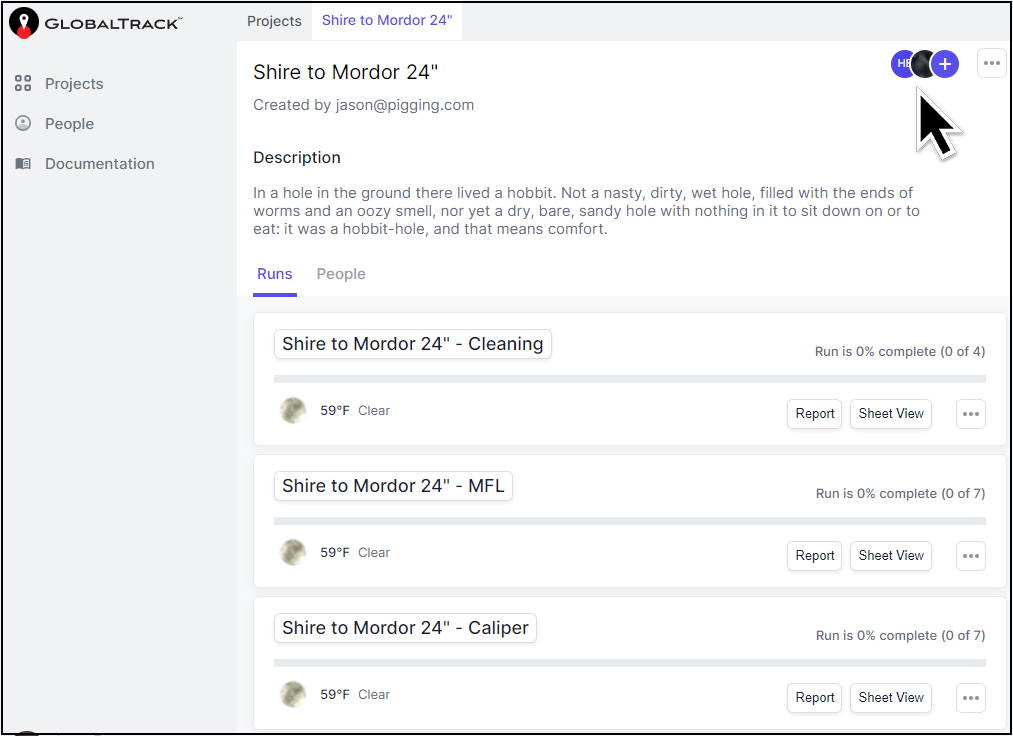
If you wish to invite a stakeholder user to a specific project you can move to that Project’s page and click the + button in the upper right of the screen.

You’ll be presented with a dialog box which allows you to enter the email address of the person that you wish to invite.
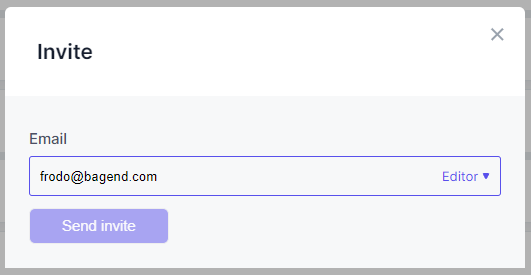
Type the user’s email address and press space or enter. Continue to add stakeholder names until you have entered all that you want to invite.
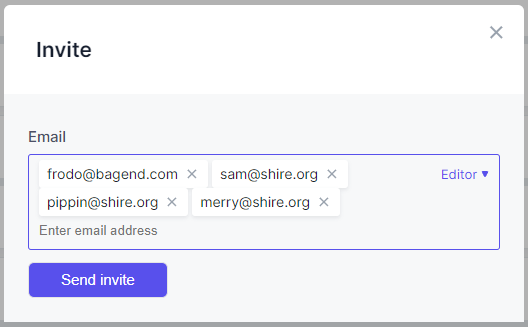
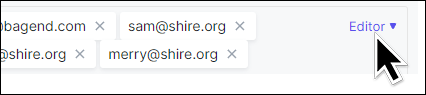
A small dropdown list in this dialog will allow you to select the role that you wish to give this group of stakeholders. The current options are Project Manager, Editor and Observer. The permissions allowed to each of these groups are discussed below in Stakeholder Roles.
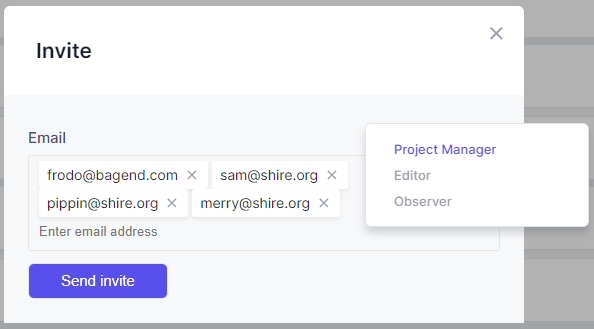
Once you have your stakeholder emails entered and have selected the role that you want the group to have, click Send invite. The users will receive an email that directs them to a GlobalTrack web page where they can create their profile and password.
Once the stakeholder has created their profile they can log in and view the Project that you have invited them to.

Todo
Bug preventing documentation; Projects unselectable.