4. Launching
4.1. Testing a Run
Todo
Need full explanation of testing runs from dev team.
4.2. Launching A Pig
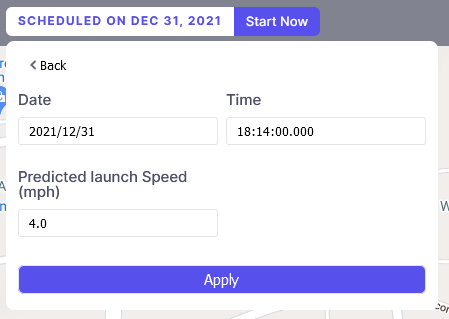
Important
It is important that you give GlobalTrack a good “best guess” predicted launch speed before launching the pig. This is the speed that the simulation will use from the launcher to the first AGM point. While the passage time recorded at the first location will correct the speed, a large difference here will skew the average run speed and make the speed plots look bad.
Info
GlobalTrack knowing the date and time of launch allows the system to ensure that you haven’t scheduled people or assets on more than one run at the same time. Additionally, the run date allows GlobalTrack to pull weather forecast information up to two weeks ahead of the run.
When this information has been entered, click Apply.
Normally you will want to click Start Now as soon a possible after the physical pig has been launched into the pipeline.
If you make a mistake, don’t worry, the launch time established when you click Start Now can be edited in the tracking sheet.
Clicking the Start Now button presents a confirmation dialog.
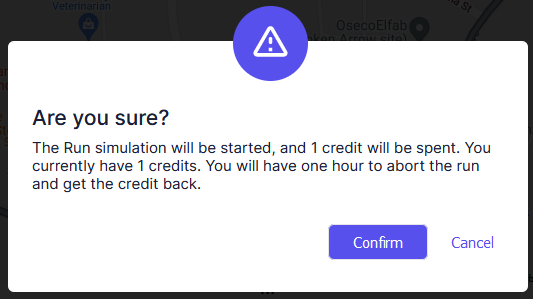
Clicking Confirm launches the tool.
5. Tracking
5.1. Manual Time Entry
To track a pipeline pig manually, GlobalTrack can be used as you would a standard spreadsheet-based tracking sheet. Simply enter a time into the Passage Time field on the tracking sheet row corresponding to the location of your tracking point or AGM on the map.
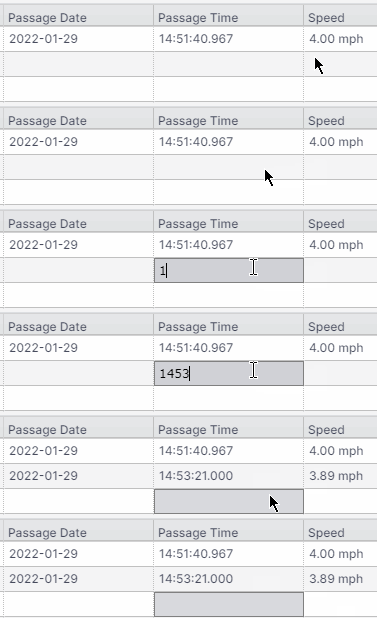
Entering a time in GlobalTrack
Notice that you don’t need to maintain a specific time formatting. Simply enter the digits corresponding to the Hours, Minutes and Seconds of the pig’s passage and either press enter or click onto another cell in the tracking sheet.
The date is entered automatically by GlobalTrack, although you can change it manually if necessary.
5.2. Automatic Time Entry
Automatic tracking takes place when a cellular or satellite instrument sends its time and date to the back-end of GlobalTrack and performs the input without human intervention.
CDI GlobalTrack is able to perform automatic tracking with a number of AGM and general purpose tracking system available from CDI. In fact, the use of GlobalTrack can be free with the purchase or rental of such equipment.
Please Contact CDI for more information.
6. Receiving
Receiving a tool and ending the run is largely automatic. The act of entering a passage time for the final tracking point on the tracking sheet is considered receiving the tool. The Run is automatically flagged as Finished.
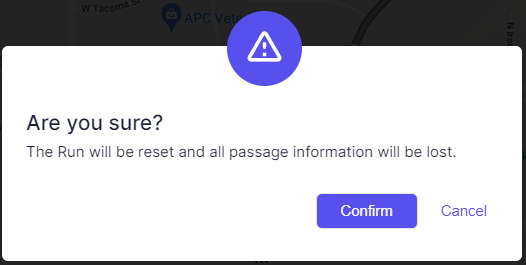
If you’re testing a run or perhaps execute a false-start on a real run, it’s possible to Abort the run compltely without saving any data. This resets the run and deletes any passage times that have been entered.
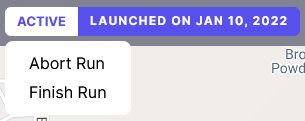
When you select Abort on the Run menu, you will presneted with a confirmation dialog.
6.1. Receiving a Tool
Receiving a tool and ending the run is largely automatic. The act of entering a passage time for the final tracking point on the tracking sheet is considered receiving the tool. The Run is automatically flagged as Finished.
6.2. Aborting a Run
If you’re testing a run or perhaps execute a false-start on a real run, it’s possible to Abort the run compltely without saving any data. This resets the run and deletes any passage times that have been entered.
When you select Abort on the Run menu, you will presneted with a confirmation dialog.
6.3. Finishing a Run
If you wish to finish a Run early, for instance in the case of a stuck pig where you know that the run will not complete normally, this is possible by clicking on the word “Active” next to the launch date. A dropdown will appear with a Finish option as seen below.
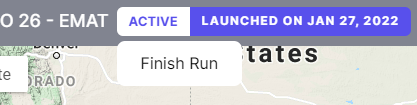
Selecting Finish will present you with a confirmation dialog:
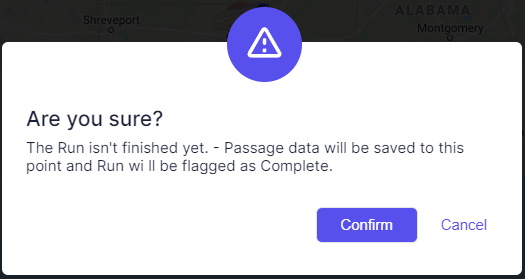
Select confirm.
Finishing a Run early differs from Aborting a Run in that Finishing a Run retains the tracking data that has been entered to that point.