12. Settings
Settings in GlobalTrack are exclusive to you and allow you to control a number of user settings including your visual avatar, default units of measure and time zone.
You can open the settings dialog by logging in to GlobalTrack and clicking on your avatar in the lower left corner of the GlobalTrack user interface:
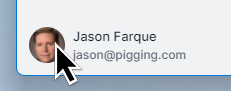
From here a small menu pops up which allows you to either log out of GlobalTrack or to open the Settings dialog.
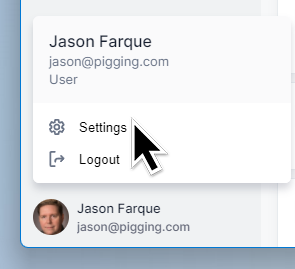
Clicking on “Settings” opens the Settings dialog which allows you to alter your profile and to upload a small avatar or adjust your default units of measure.
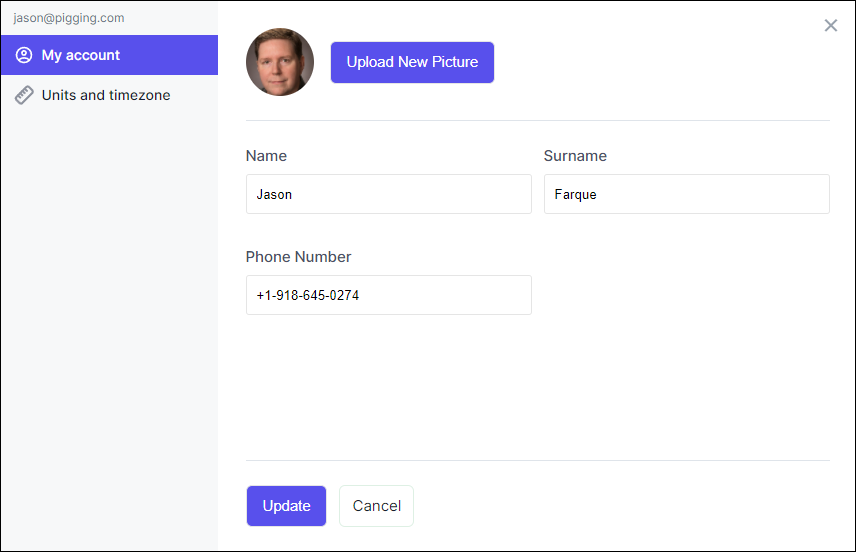
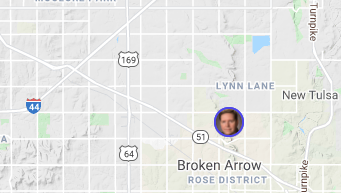
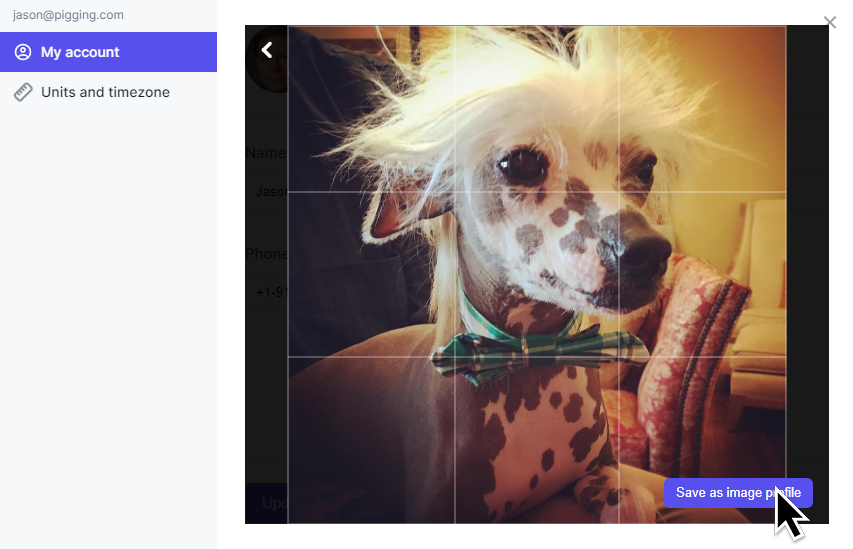
This avatar image is used on the map to indicate your location when it is shared with others. This can be any png or jpg image, we suggest either a picture of you, or your company logo.
12.1. Uploading an Avatar
When uploading your image, you have the opportunit to crop and scale it to your preference. Once finished, click the “Save as image profile” button to accept your new avatar image.
12.2. Changing Units of Measure
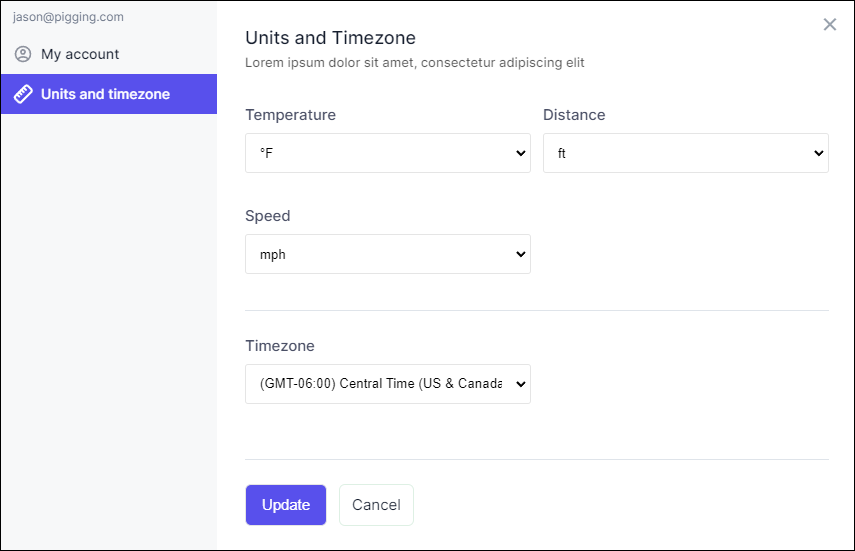
Your default units of measure control how units are displayed throughout GlobalTrack, but most importantly in the tracking sheet and map overlays. These settings are saved on the server, meaning that whatever browser you use to log in to GlobalTrack, you should find that these settings are correct for you.
Important
These units of measure are merely a convenience for the user and only changes how GlobalTrack displays units to you. Changing units of measure cannot damage a run.
12.3. Changing Time Zone
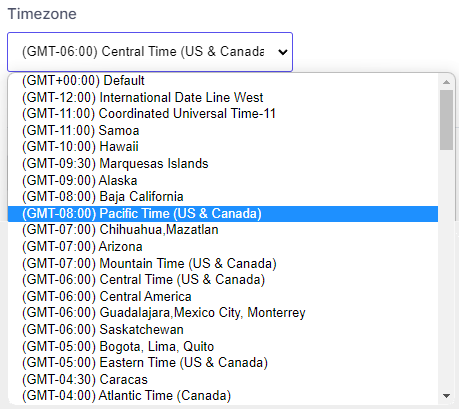
The time zone setting is the default time zone that GlobalTrack uses to display and take as input times in GlobalTrack.
Important
CDI GlobalTrack stores all times internally as Universal Coordinated Time, or UTC. However, it displays times and takes times as input from the user, in the time zone set here.
This time zone flexibility is a convenience, as it is usually desirable to see and enter times into the tracking sheet in the time zone in which you are working.
Use Case 1
If you are a tracking technician that is moving around the globe tracking pigs, it’s usually most convenient to enter passage times in the local time zone of your current region. For instance if you are in California, setting your default time zone to Pacific Time in GlobalTrack allows you to enter and view times in that time zone.
Use Case 2
If you are a manager watching a run take place in a time zone that is different than your local one, it can be sometimes useful to switch to the time zone that is local to the run. You can do this or watch the run in your current time zone.